
IDP: Surveys and assessment. 360 Score: Setting up skills and session questions
The Skills and Questions tab in an assessment session reflects the assessment's association with skills from the Skill Tree , as well as questions from the Question Bank, with the ability to add new questions manually directly from the assessment session creation window.
To create a 360° assessment questionnaire, you can:
- create a Question Bank in advance , linked to the skills being assessed;
- or create and link questions and skills directly at the assessment session creation stage.
Skills themselves can be assessed using either quantitative or qualitative assessment models . For more details, see the linked article.
To start an employee assessment, you need to add at least one question and one skill that will be included in the assessment.
How to Include a Skill in a 360-Degree Assessment
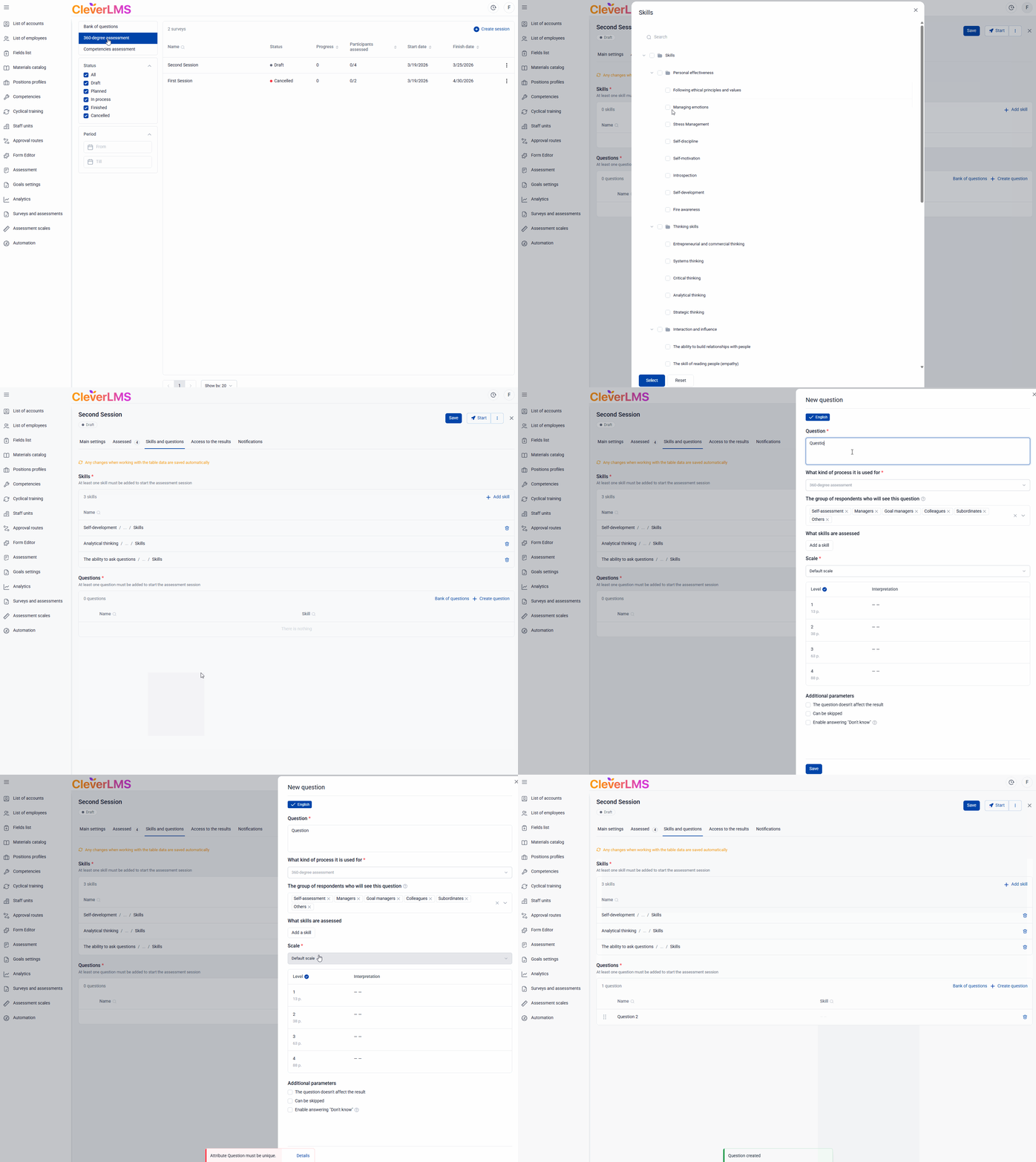
Click the Add Skill button in the first table to add a skill that will be assessed as part of the assessment session:
You can find the skill you need using the search function.
If the skill being added is already used in questions from the Question Bank , the system will offer two options:
- add this skill along with all related questions automatically ;
- or add only the skill itself - without adding questions.
This means that if you already have questions about a skill, you don't need to search for them manually; you can pull them up automatically.
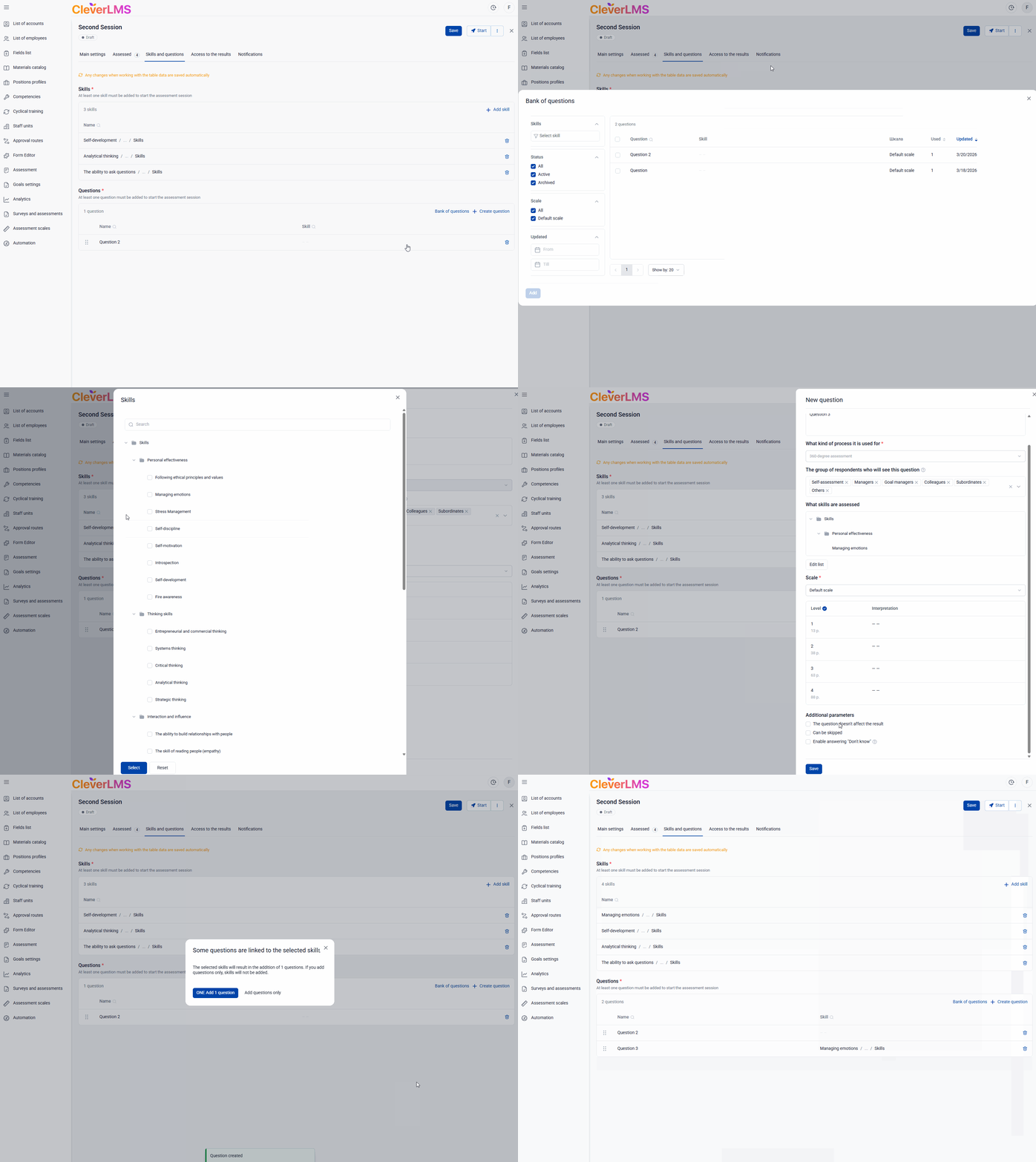
Using the Question Bank button , you can add existing questions to the session. If these questions are skill-related, the system will offer to either add just the question or automatically add the skill as well.
If the required question isn't available, you can create it using the "Create Question" button . This question will be immediately added to the current assessment session and automatically saved to the Question Bank.
Thus, when adding questions using the Question Bank or Create Question buttons:
- You can add a question and automatically add skills related to that question;
- You can add only a question without taking into account the link to skills.
Technical details
Please note: If you change a question (its title or settings) in the question bank after it has already been added to the assessment , these changes will not be automatically applied to the assessment .
The assessment will display the old version marked "Archived" and the archived time. To use the updated question, you will need to manually remove the archived version from the assessment and re-add the new one.

Therefore, before adding questions, it's important to carefully check their relevance and accuracy .
Once a session has started, questions cannot be deleted or new ones added.
Editing the list of questions and skills assessed in 360 Assessments
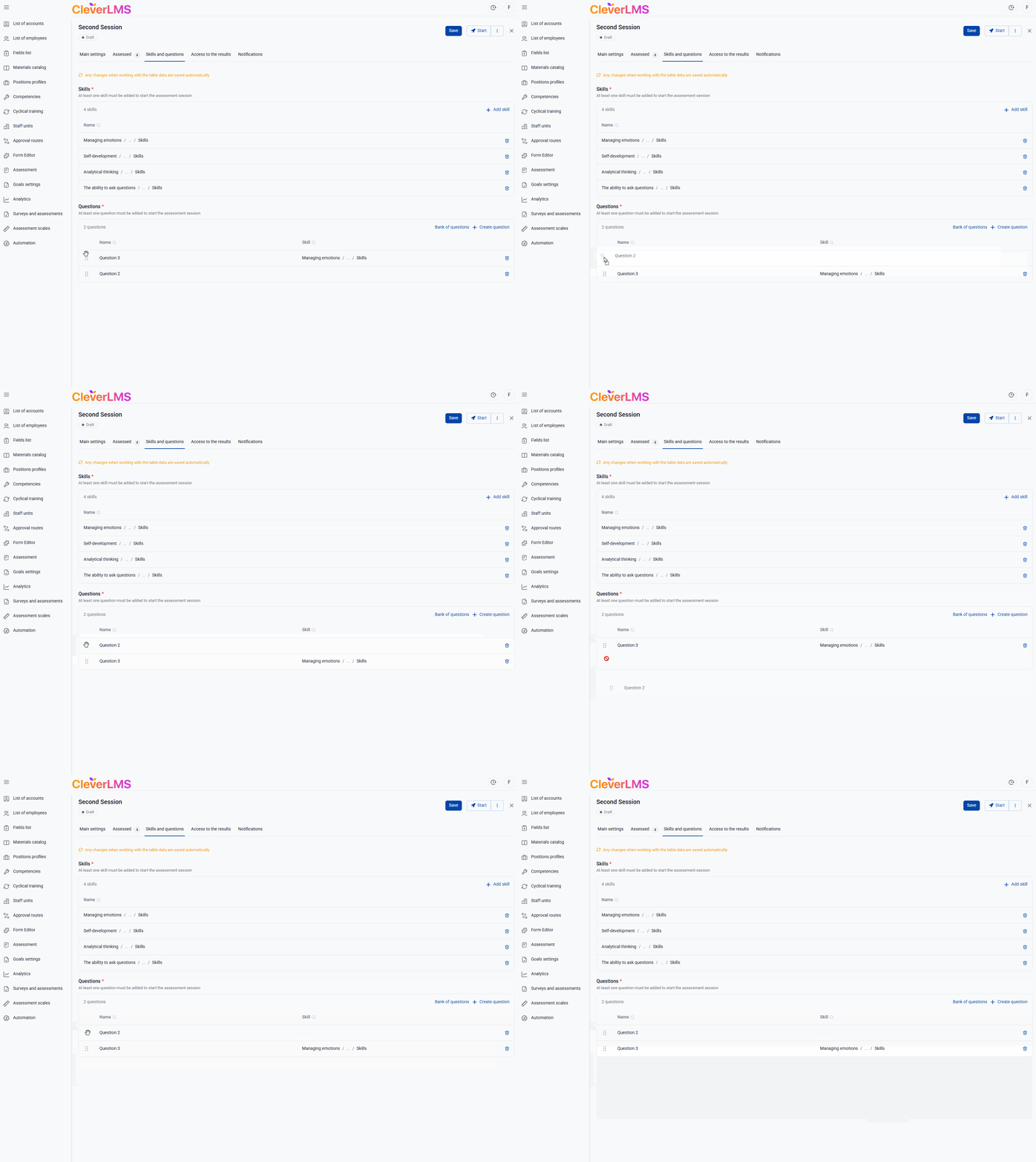
Questions in the list are displayed in the same order as the user will see them. If necessary, the order can be changed by simply dragging the question to the desired location.
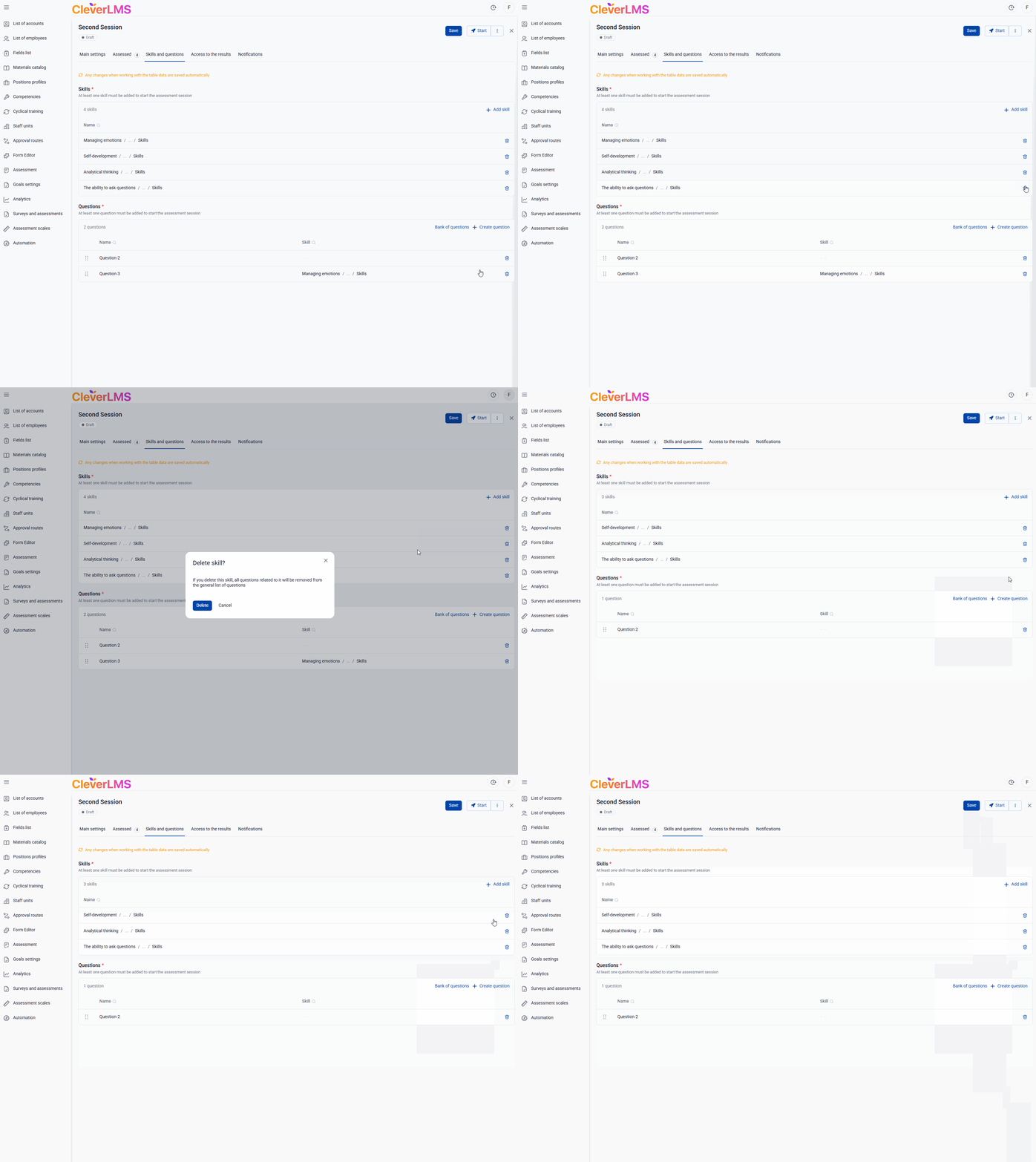
To remove a skill from the list of those participating in the assessment:
- Go to the Skills and Questions tab of 360 Assessments;
- Find the required skill in the skill table;
- Click on the trash can icon next to the skill you want to exclude from the assessment;
- Click Delete in the confirmation window.
To remove a question from the assessment questions list:
- Go to the Skills and Questions tab of 360 Assessments;
- Find the required question in the table of questions;
- Click on the trash can icon next to the question you want to exclude from the assessment;
- Click Delete in the confirmation window.
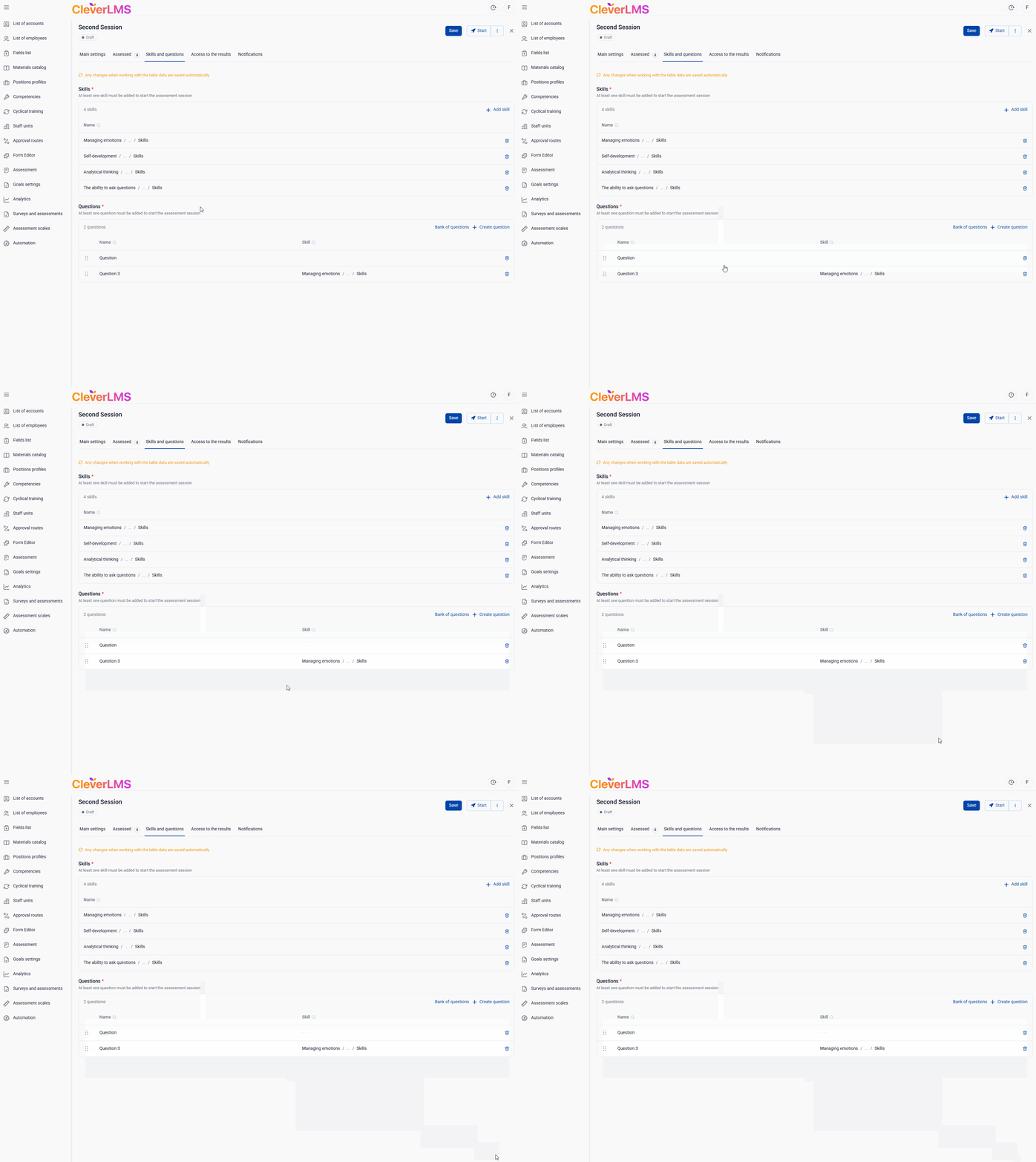
If you delete a skill from the list that has questions linked to it, the linked questions will also be deleted from the second table.
If you delete only the question , the skill will still be added.
After creating a list of skills to be assessed and adding questions that will be included in the assessment, you can proceed to setting up notifications for the assessment session .