
IDP: Surveys and assessment. 360 rating: forming a list of session participants
Adding and editing the list of assessed
The Evaluated tab displays information about the employees who are to be evaluated as part of the evaluation session and who are participating in the evaluation.
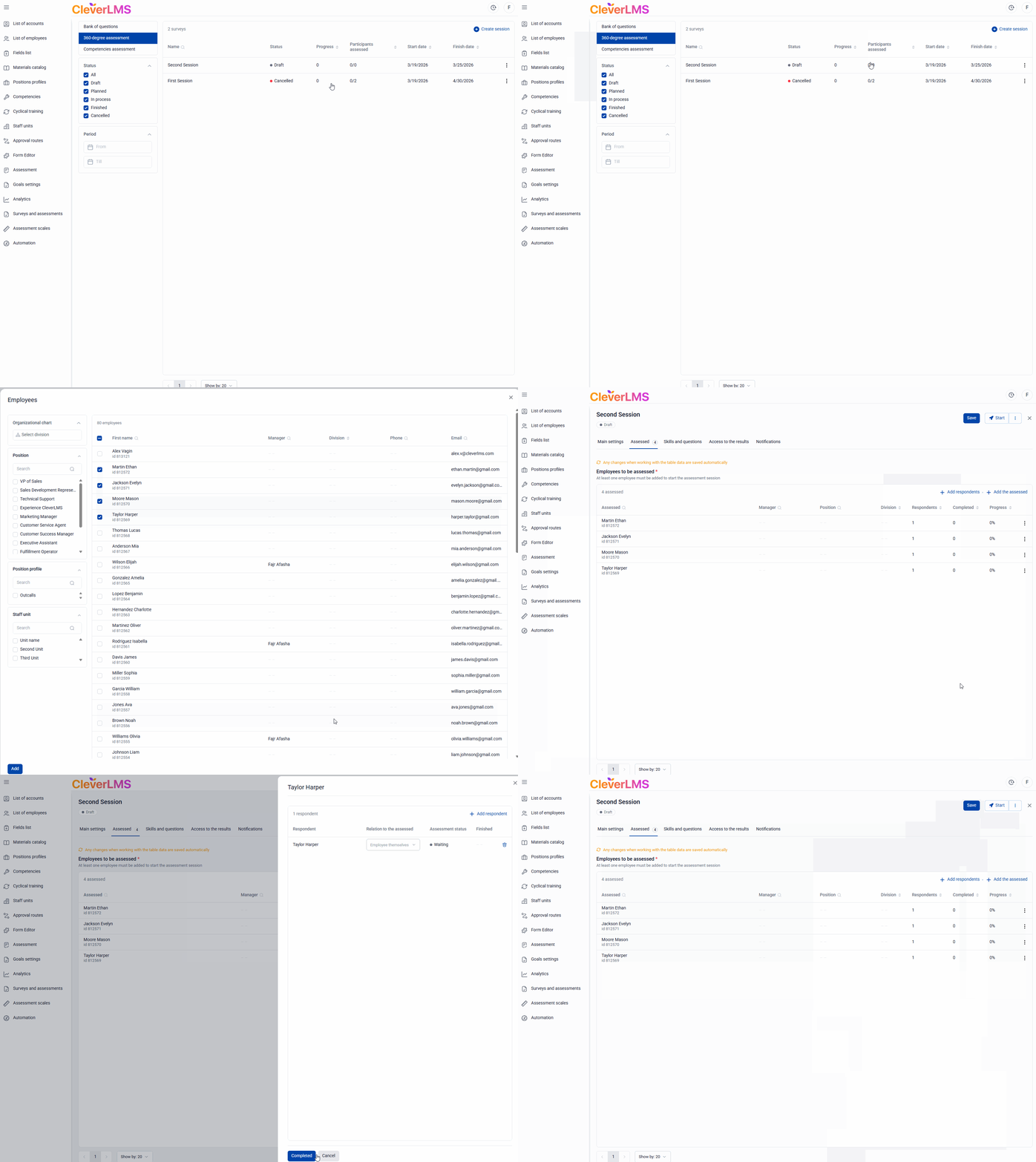
To add an employee to evaluate his skills;
- Go to the Assessments tab in the assessment session;
- Click on the Add assessee button;
- Select the required people from the general List of employees , using additional filters and sorting options if necessary;
- In the confirmation window, select one of the options:
- Add skills - if you want to automatically add skills related to the employee's job profile
- do not add - to add only the person being assessed to the list without linking them to skills.
Important
When adding an employee to be assessed in the 360° assessment of the IDP module, there's no need to manually create lists of respondents . The system automatically selects assessment participants based on their hierarchical affiliation and assigns the appropriate roles (manager, colleague, subordinate, self-assessment) based on the settings specified in the assessment.
This eliminates manual entry errors, eliminates the need to manually compile respondent lists, and simplifies the administrator's work.
Furthermore, automatically assigned roles minimize the risk of errors when determining who is an employee's colleague and who is their manager.
If necessary, respondent roles can be manually changed for each assessee.
Once you have added employees to be evaluated, the following information will be displayed in the general table:
- Evaluated person - last name and first name of the person being evaluated;
- Manager - the immediate supervisor of the employee being evaluated;
- Position of the employee being evaluated;
- The department to which the employee being assessed belongs;
- Respondents - the number of respondents who participate in the employee assessment;
- Rated - the number of respondents who have already rated the employee;
- Progress on assessment.
If necessary, you can sort the employees being evaluated in the list by the Department, Respondents, Evaluated , and Progress columns , and also find the desired employee being evaluated in the list using the search by the Evaluated, Manager , and Position columns .
Clicking on the Trash icon removes the evaluated employee from the list.
Adding and editing the list of respondents
When adding assessees to a 360 assessment, a list of respondents is automatically generated in relation to them , depending on the quadrants on the Basic Settings tab of the assessment session.
In the table on the Evaluated tab , you can see the evaluation progress status for employees.
Any changes you make while working with table data on the Evaluated tab will be saved automatically.
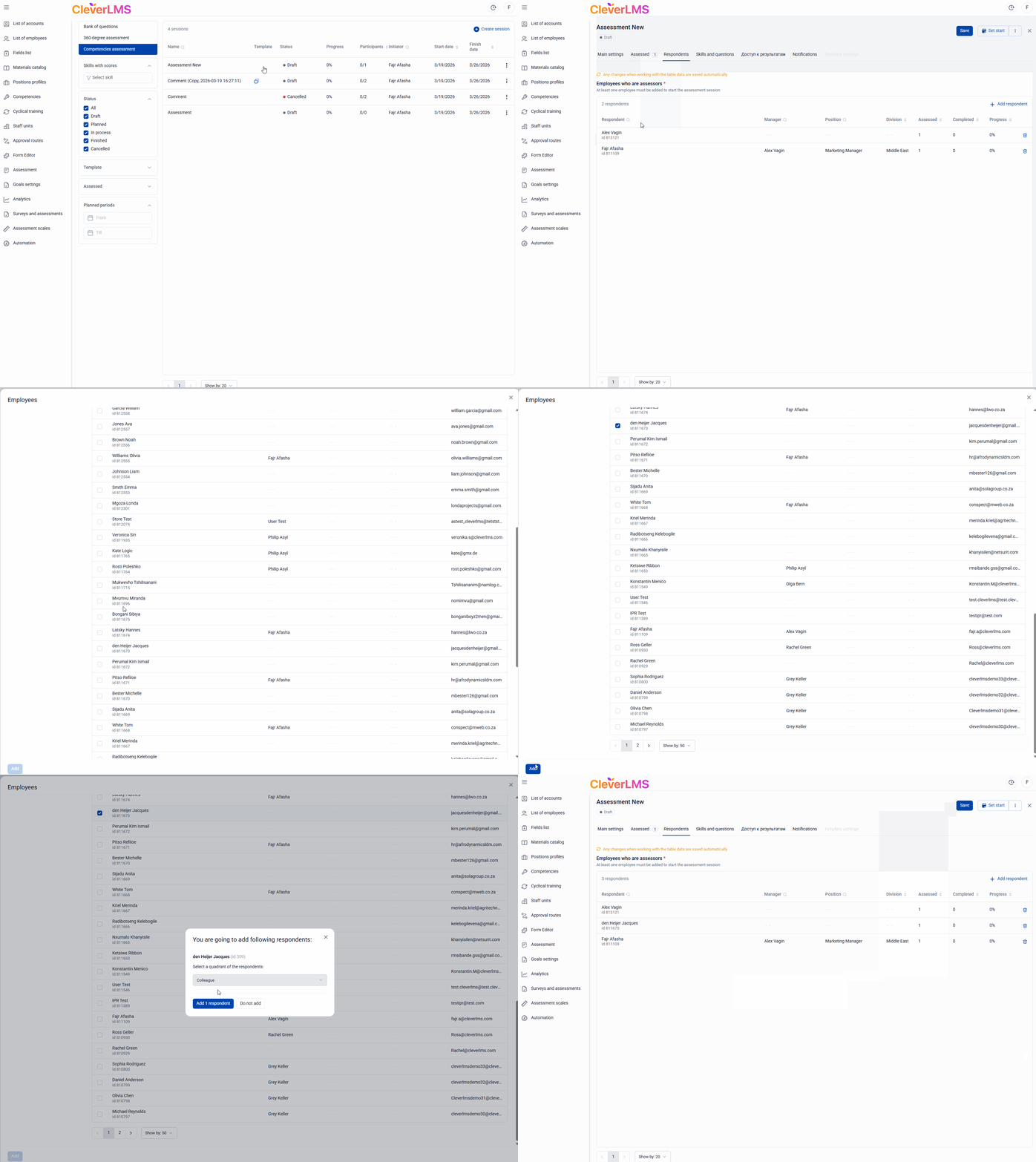
To add a respondent to one being assessed:
- Go to the Rated tab;
- Select the desired assessee from the list by clicking on it;
- In the window that opens, click Add respondent ;
- Select the required respondent(s) from the general list using the checkbox;
- Click Add ;
- Select the role in which the selected respondents should be added in relation to the one being assessed;
- Confirm your selection.
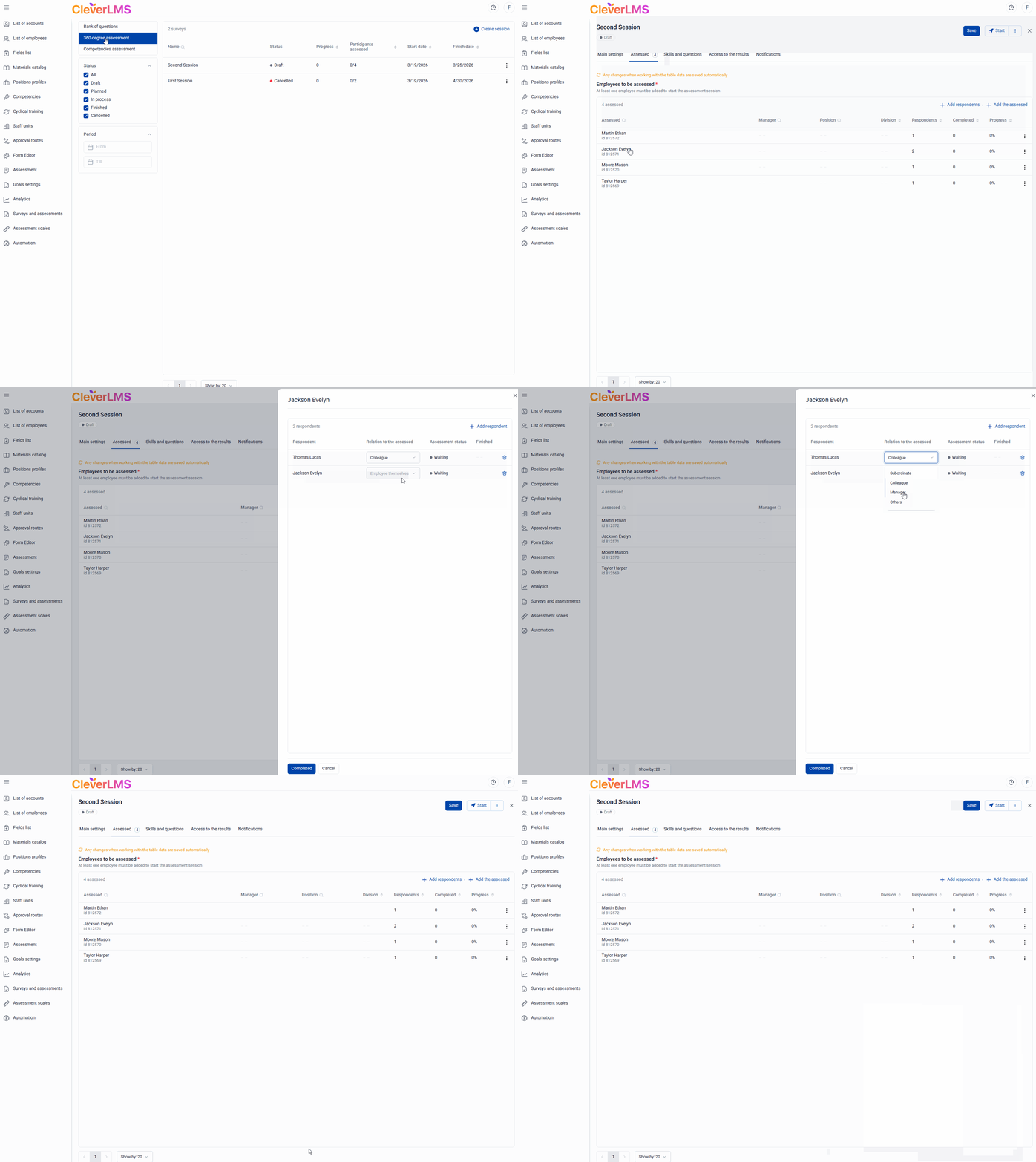
To change the role of the respondent in relation to the person being assessed:
- Go to the 360 Assessments Assessment Sessions tab ;
- Select the desired subject by clicking on it;
- Click on the drop-down list opposite the required respondent and change their role in relation to the one being assessed;
- Click Done .
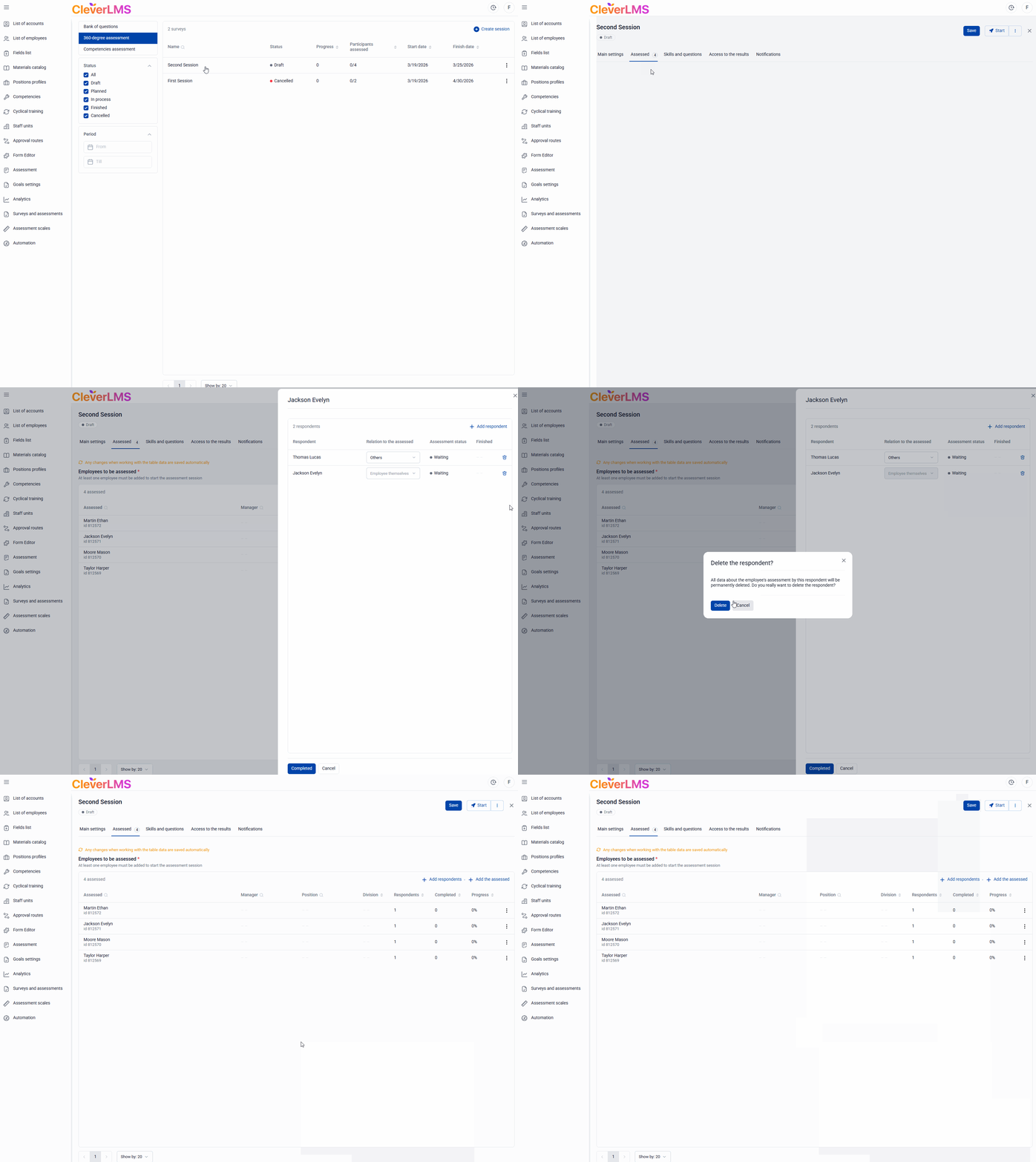
To remove a respondent for an evaluator:
- Go to the 360 Assessments Assessment Sessions tab ;
- Select the desired subject by clicking on it;
- Click on the trash can icon next to the respondent you want to exclude from the user's list;
- Click Delete ;
- Click Done in the confirmation window.
To add a respondent to participate in the assessment of all added employees being assessed:
- Go to the Assessed tab;
- Click Add Respondent;
- Select a respondent from the list, click Add and specify his role ;
- Click Add Respondent to confirm your selection.
The selected respondent will then be automatically added to all employees being assessed within the current assessment session.
Once you have added all the assessment participants, you can proceed to setting up the Skills and questions for the assessment session.