
IDP: Surveys and assessment. Assessment 360: creating an assessment session
General information
A 360° assessment is a tool for obtaining comprehensive feedback on an employee from various groups of respondents. It is used to analyze behavioral, communication, and management behaviors and helps form a holistic understanding of how an employee's work style is perceived by others.
360° assessment functionality allows administrators and HR managers to set up, launch, and monitor employee assessment processes through the admin panel.
Unlike the Competency Assessment , which focuses on specific skills and their level of development, the 360° Assessment is not directly tied to a job profile or position .
Its primary purpose is to identify strengths and areas for development based on feedback from colleagues, managers, subordinates, and other stakeholders.
360° assessment is particularly effective when required:
- obtain a holistic picture of feedback from different groups of respondents;
- analyze the behavioral and managerial aspects of the employee’s work;
- to identify the characteristics of interaction style and leadership manifestations;
- support work with employee awareness and self-development.
However, 360° assessment results do not always directly and unambiguously link to specific skills or an individual development plan. For entry assessments, learning outcomes evaluation, regular competency monitoring, and formally recording skills in an employee profile, competency assessment is a more appropriate tool .
Thus, the 360° assessment addresses the challenges of broad analysis and the formation of a general understanding of an employee’s performance in the work environment , while the Competency Assessment complements it by providing a targeted, measurable and development-oriented assessment of specific skills .
In a 360° assessment , the respondent is the person who provides feedback about the employee being assessed.
Depending on the role of the respondent, these may be:
- The manager evaluates the subordinate;
- Colleagues - evaluate the employee on an equal basis;
- Subordinates - evaluate the manager or senior colleagues;
- The employee himself undergoes self-assessment;
- Others - other employees added to the assessment session manually.
In other words, respondents are all those who participate in collecting opinions about the competencies and behavior of the person being assessed.
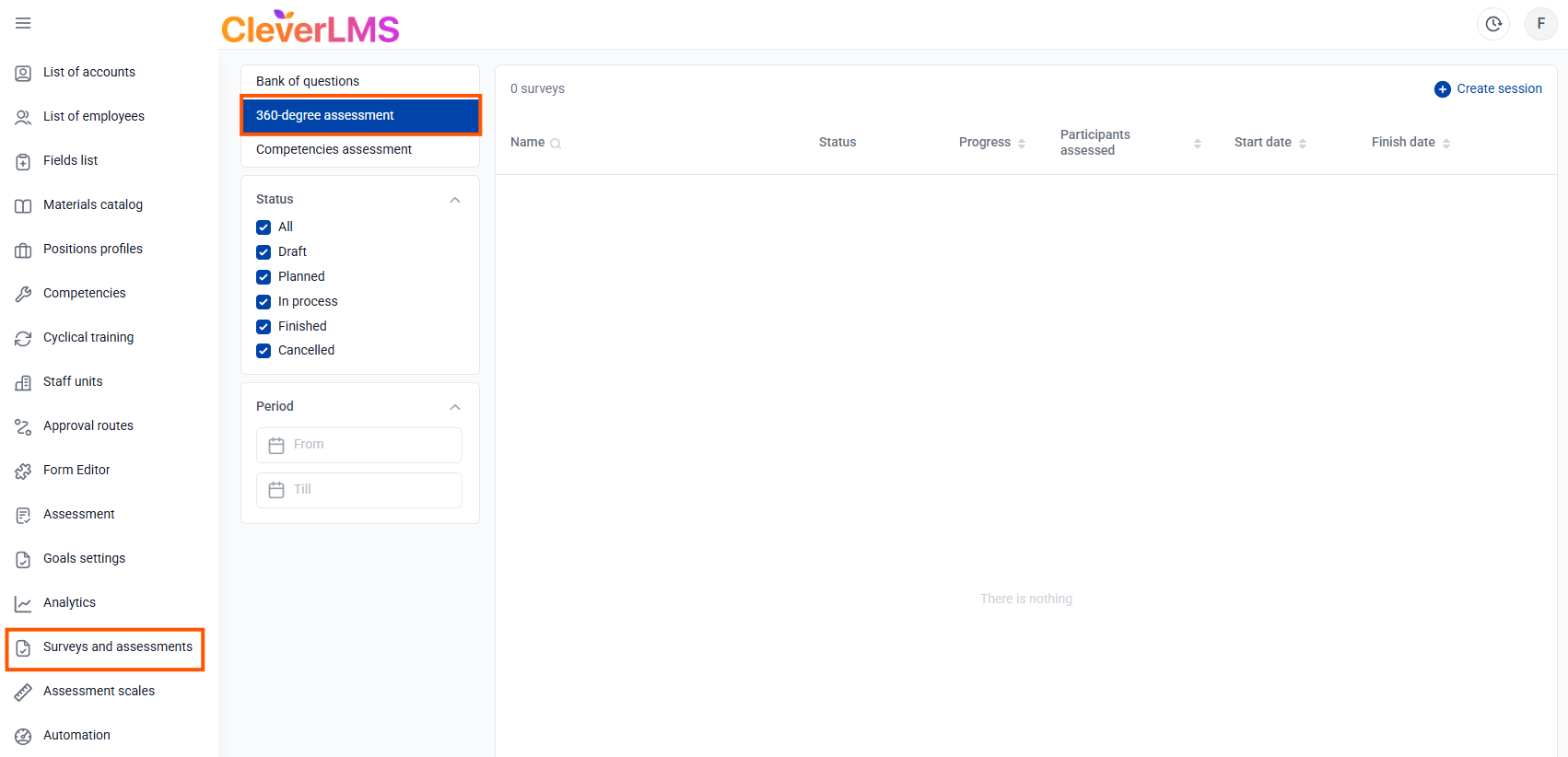
Contents of the 360 Rating tab
Table of assessment sessions
The Surveys and Assessment section of the IDP module provides the ability to conduct a comprehensive assessment of employee competencies using a flexible Question Bank , which can be linked to relevant skills and imported from other systems. This tool is used to collect feedback from various groups of respondents (manager, colleagues, subordinates, self-assessment) to form a holistic view of employee competencies.
By clicking on the 360° Rating tab in the additional menu of the Surveys and Ratings section, the administrator is taken to the 360° Rating survey list page .
The main work area contains the created assessments and displays the following information about them.
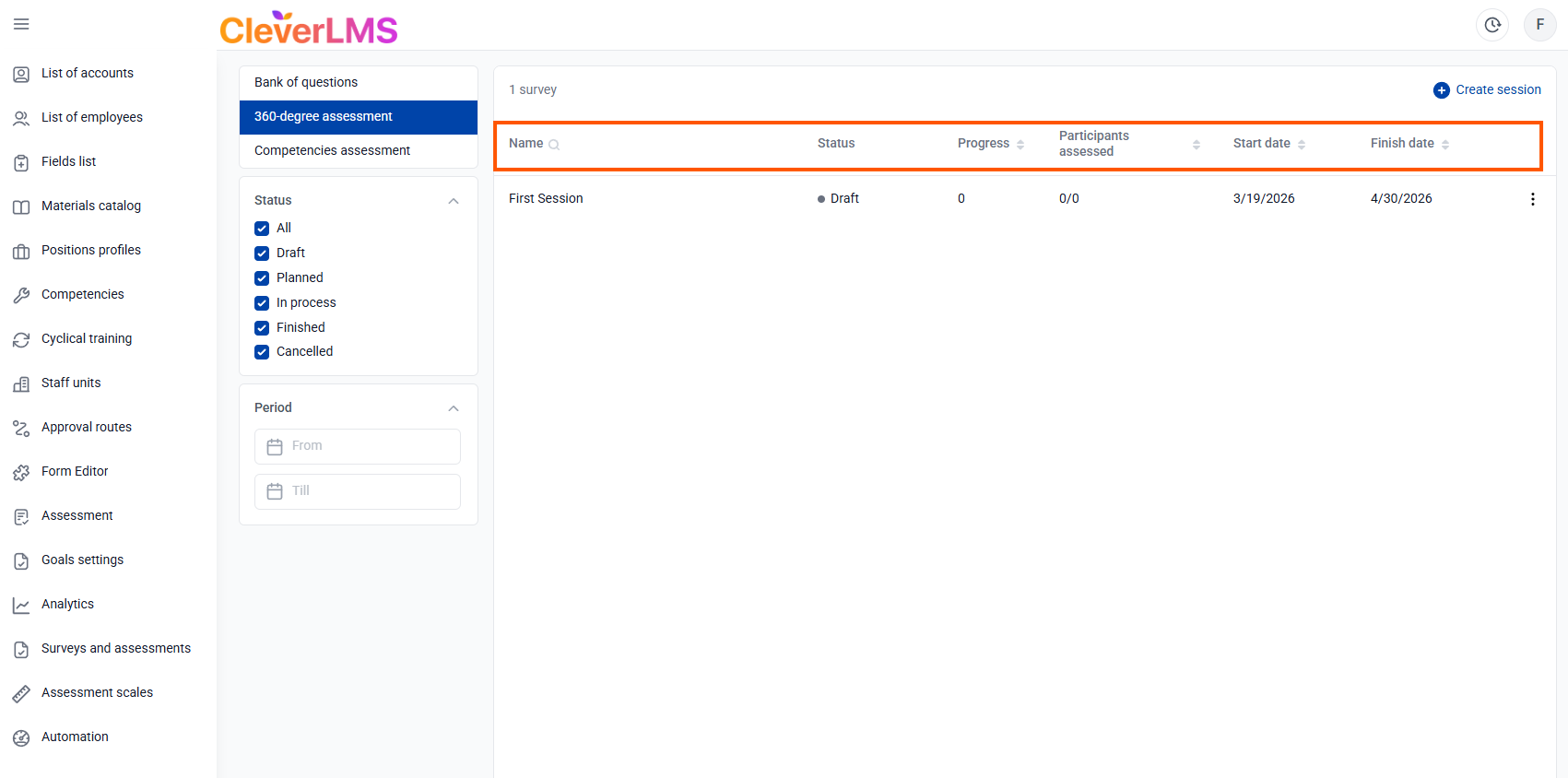
Title - the title of the assessment session (if necessary, you can use the search by title);
Status - the status of the evaluation session with a color indicator:
- Draft - gray;
- Planned - orange;
- In process - the main color of your company;
- Completed - green.
Progress is a percentage that shows how much of the survey has already been completed by participants. The higher the value, the closer the session is to completion;
Evaluated participants – the number of evaluated participants in the format “ n/m ”, where n is the number of evaluated, m is the total number of participants evaluated;
Start date – the start date of the assessment in the format “ dd.mm.yyyy ”;
Completion Date – the assessment completion date in the format “ dd.mm.yyyy ”.
Filters and sorting
The 360 Assessments table of assessment sessions can be sorted in ascending or descending order by the following fields: Progress , Participants Assessed , Start Date , and End Date . The Title field is searchable , allowing you to quickly find the sessions you need.
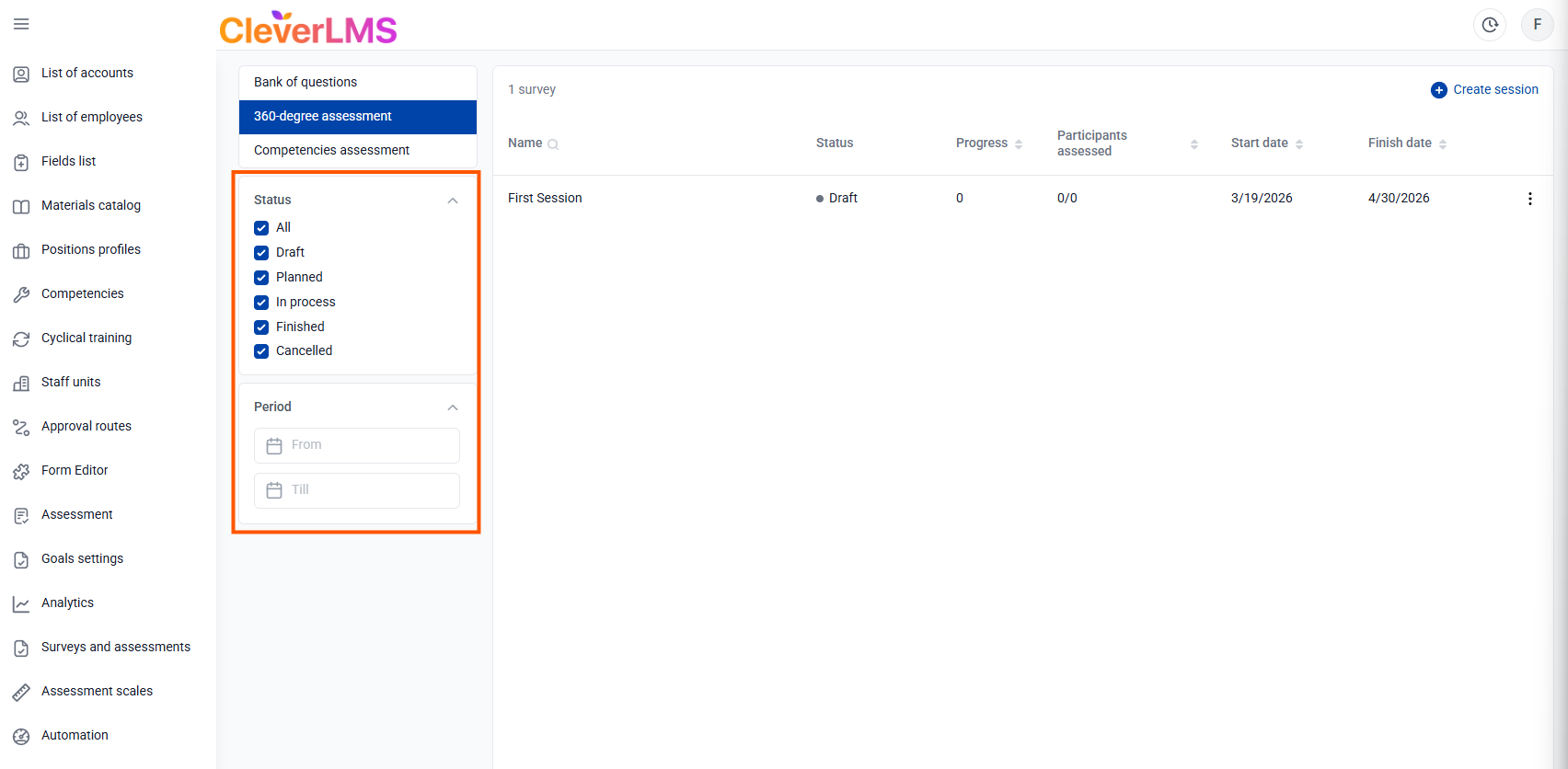
To the left of the main table are filters that allow you to customize its display based on the status of the assessment session and the period during which it was conducted.
Let's look at the main parameters and stages of working with 360 Assessment sessions : the procedure for creating, configuring, and launching them.
Copying, deleting and canceling an assessment session
The administrator can manage the assessment session lifecycle: create copies, delete drafts, and archive sessions. These actions allow for reuse of settings, maintain order in the workspace, and gracefully stop the assessment process when necessary.
Copying a session
Copying allows you to create a new session based on an existing one, significantly saving the administrator time and reducing the risk of setting up similar assessment sessions. When creating a copy, the parameters and settings of the original session are transferred to it.
This function is useful when necessary:
- Repeat a regular assessment - you can copy a completed session and update the dates and participants.
- Launching parallel sessions with a standard structure—copy a session and change the composition of participants, while maintaining the basic settings according to the standard example.
To copy a session you need to:
- Go to the 360 Rating tab ;
- Find the required session in the list, using filters and sorting if necessary;
- Click on the three dots to the right of the desired session;
- Select the Copy function ;
- In the window that opens, if necessary, select the data you want to add to the copy (you can select both options):
-Copy assessees and respondents;
-Copy skills and questions - Click the Copy button .
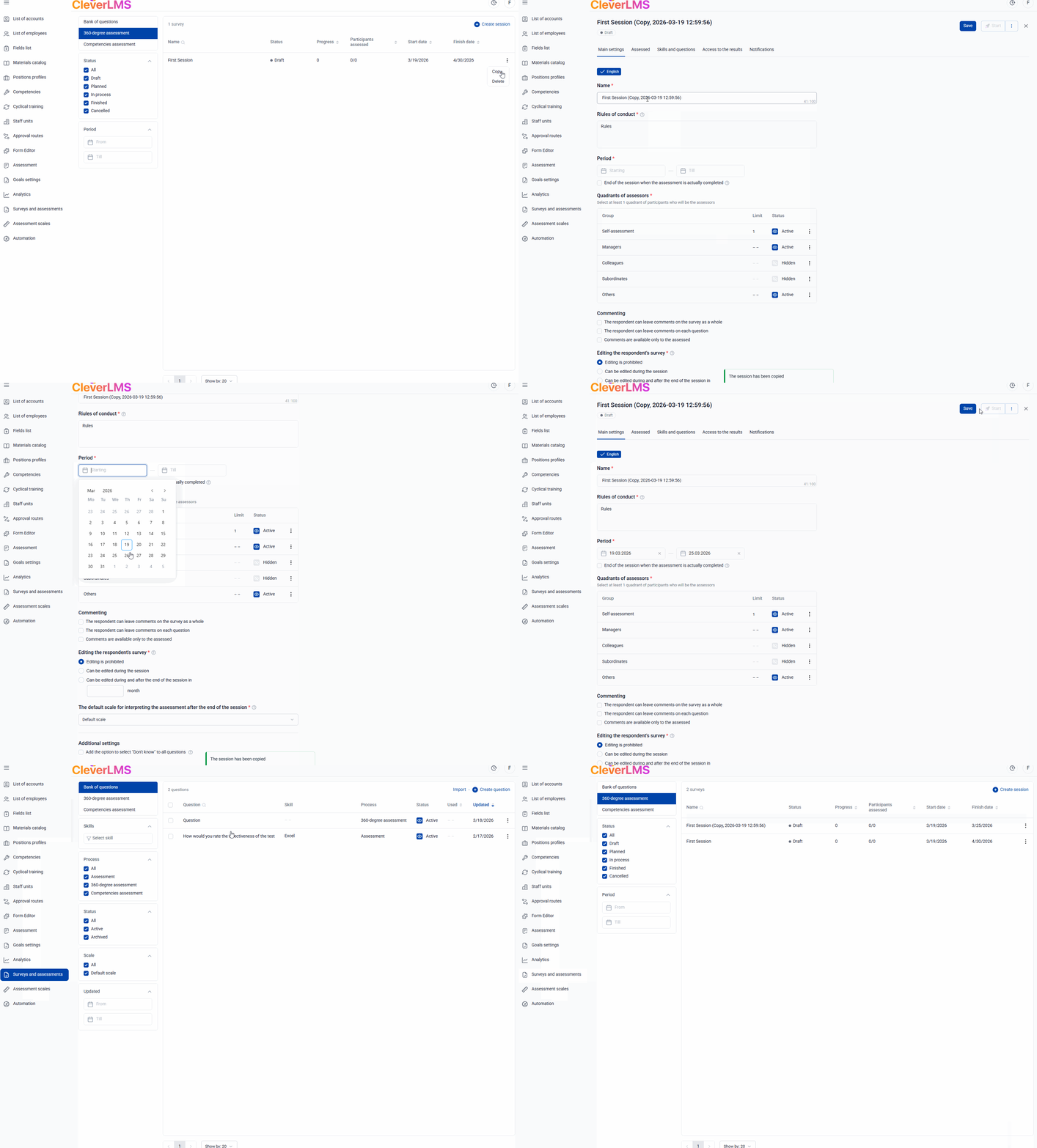
After creating a copy, you need to set a new period for the event, and you can also change other copied parameters.
You can copy a session in any status.
Deleting a session
Deleting assessment sessions helps keep your workspace tidy and eliminate unnecessary sessions that were created in error.
Once the deletion process is complete, the evaluation session is completely removed from the system and is not displayed in the general list of sessions.
To delete an assessment session you need to:
- Go to the 360 Rating tab ;
- Find the required session in the list, using filters and sorting if necessary;
- Click on the three dots to the right of the desired session;
- Select the Delete function ;
- Click the Delete button in the confirmation window.
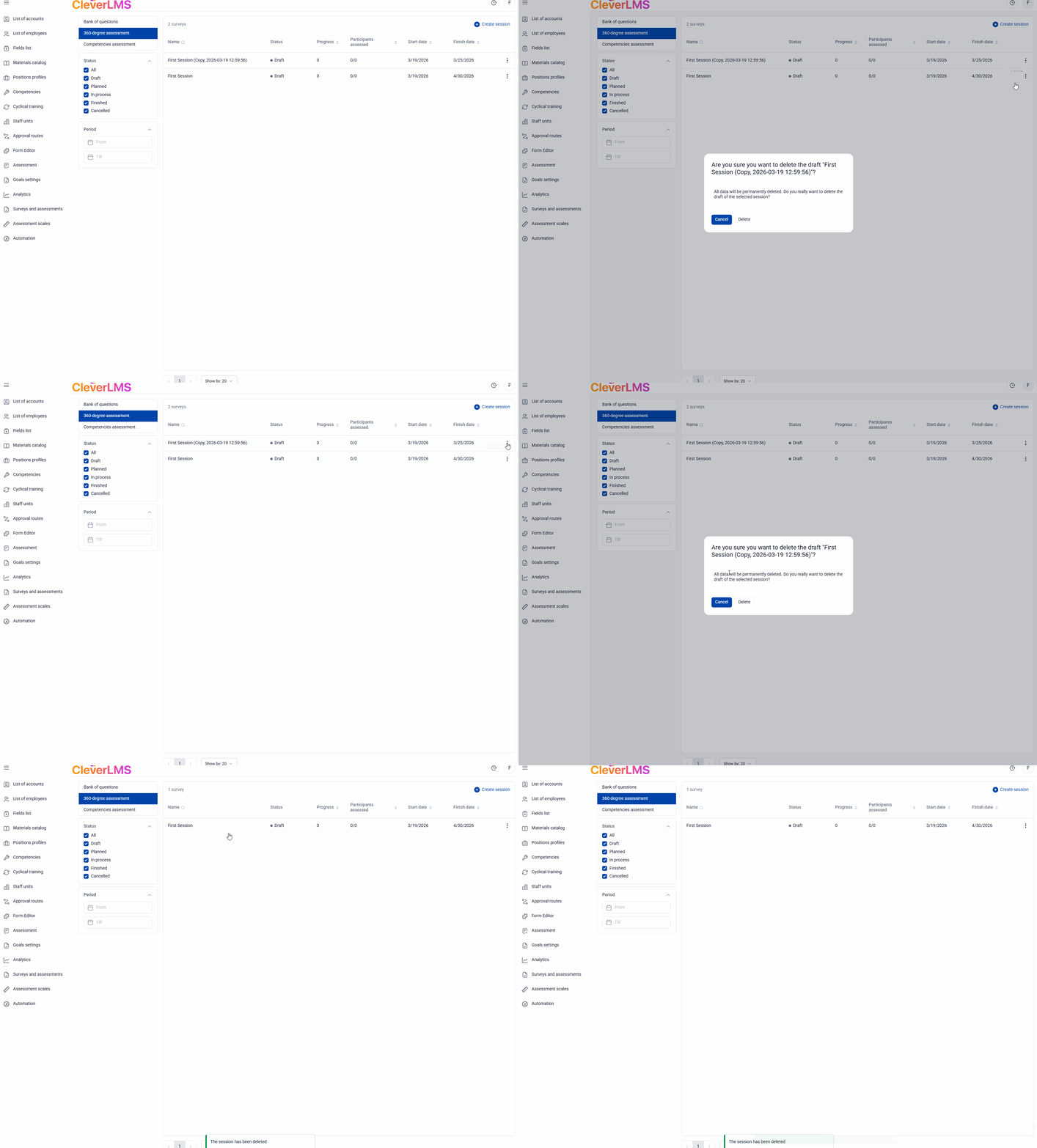
Deleting a session is only possible if the session status is Draft . This function is unavailable for other statuses.
Cancel session
Cancel allows you to stop the evaluation process gracefully.
The session receives the Cancelled status , is not considered complete , and does not send notifications to participants .
This feature is useful if you need to stop a scheduled or already running session and hide it from employees. This makes the session unavailable for completion and no longer appears in the user ratings list, but the administrator can still view the session's progress.
To mark an assessment session you need to:
- Go to the 360 Rating tab ;
- Find the required session in the list, using filters and sorting if necessary;
- Click on the three dots to the right of the desired session;
- Select the Undo function ;
- Click the Cancel session button in the confirmation window.
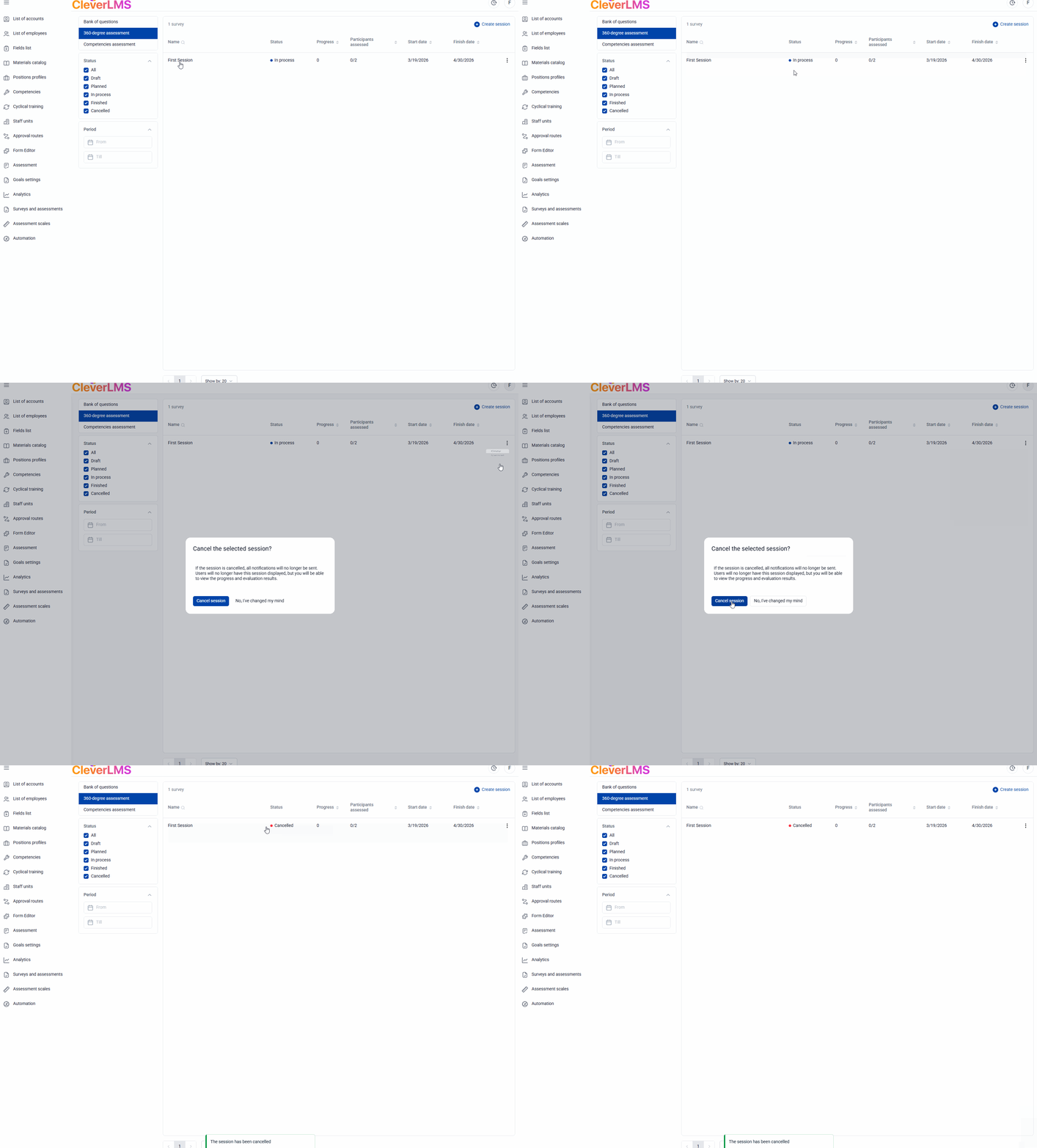
You can only cancel a session if it has the In Progress status . This feature is unavailable for other statuses.
A canceled session retains the ability to edit the quadrants involved in the assessment. No other changes are possible. If necessary, you can duplicate the session, make changes to the copy, and rerun the assessment.
Creating a 360° Assessment Session
To create a 360 Assessment session:
- Go to the Surveys and Evaluation section of the IDP module;
- Go to the 360 Rating tab in this section;
- Click the Create Session button in the upper right corner of the screen - a window for creating and setting up a new assessment session will open.
Once a session is created, you need to configure the basic settings to save it to the general list: enter a name and description, and set the assessment period. Then, click the Save button . The session will be saved to the general list, and you can proceed with further configuration.
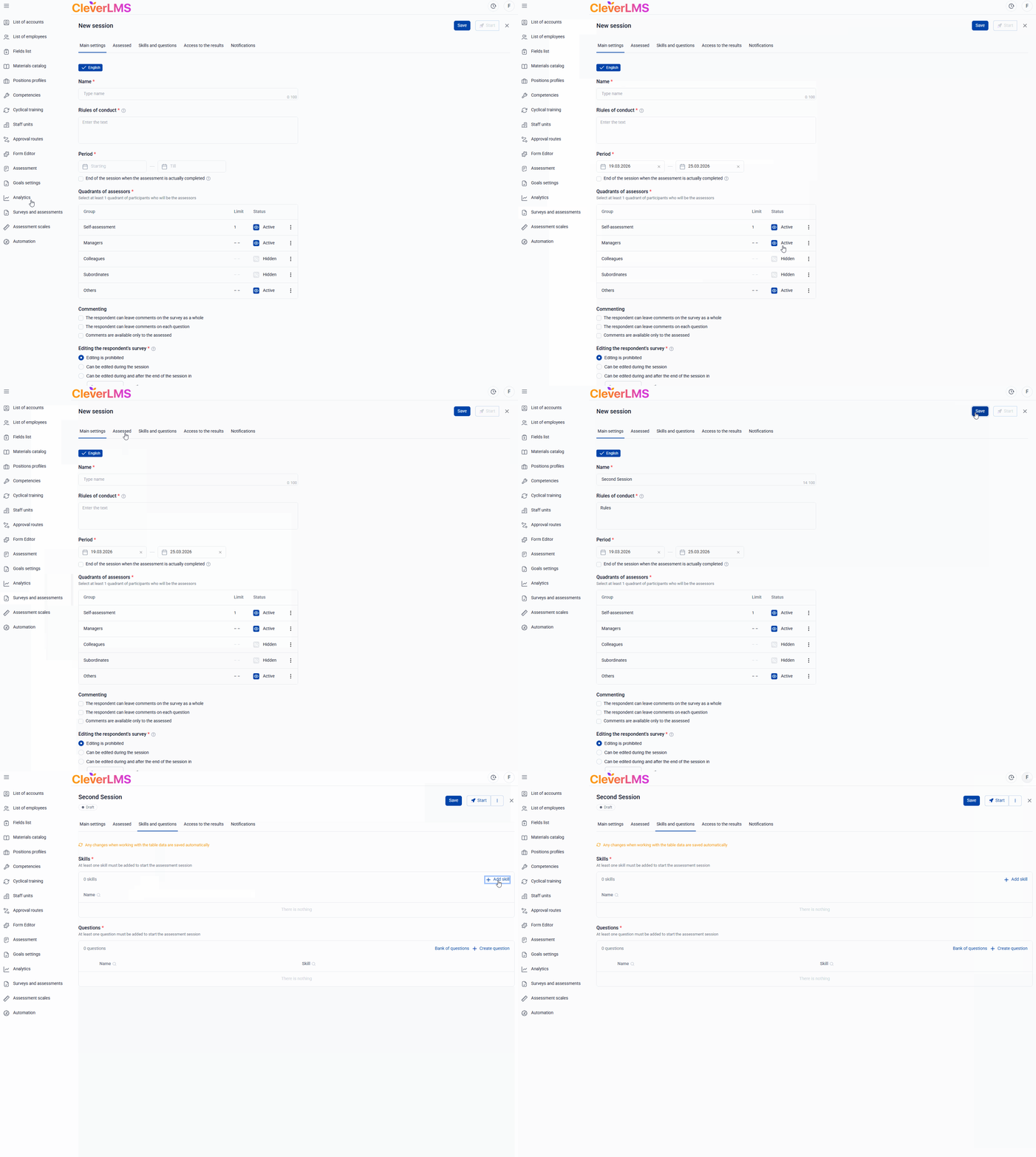
The session name must be unique and the session start date cannot be earlier than the current date.
If you create a session without filling out the Basic Settings tab and exit it without saving, the session will not be added to the platform.
How to set up a 360° Assessment session
After creating an assessment session, you need to configure it step by step. Below are the main steps for working with an assessment. A detailed description of the steps for each step is available via links in the corresponding knowledge base articles.
- Basic settings for the assessment session ;
- Adding assessees and respondents ;
- Customizing skills and assessment questions ;
- Setting up notifications for assessment participants.
- Assessment results .
By clicking on each item, you will be able to read detailed instructions on how to set up the corresponding step.
The employee's path through the assessment process
This functionality is paid, and a preliminary test is available. Contact your manager to find out the cost and setup timeframe.