
The user version of the IDP: Uploading reports
Exporting reports in the user version
In the user version of the IDP, as in the administrative panel, it is possible to download various reporting options.
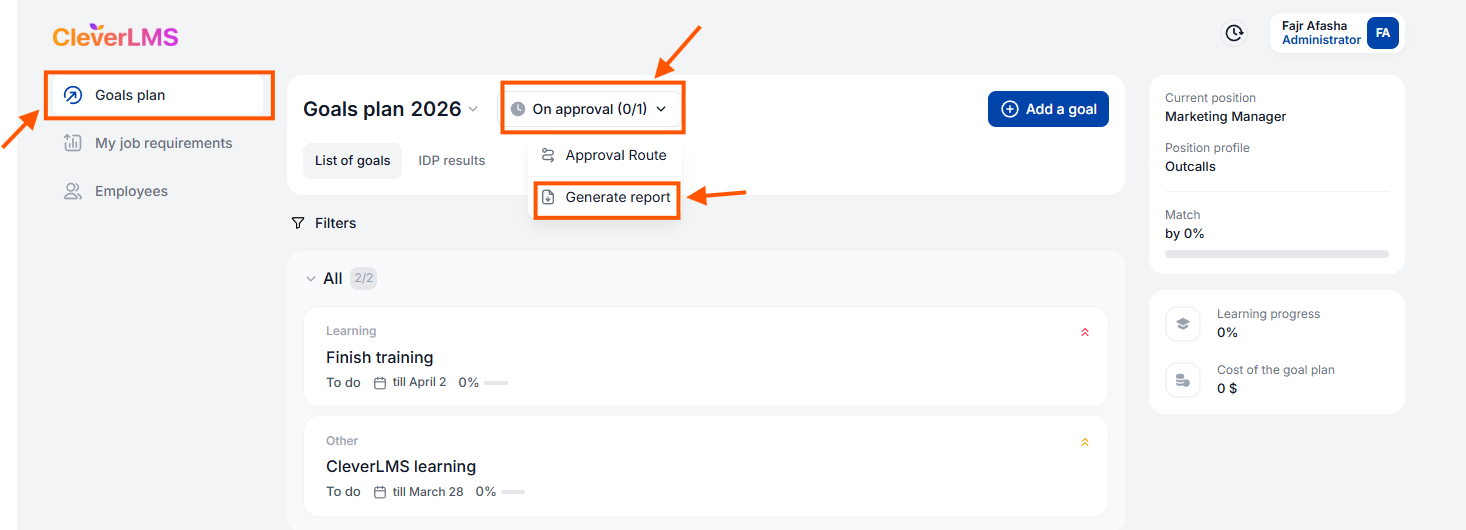
To download a report on your individual development program (IDP), go to the Goal Plans section. To do this, the employee needs to:
- In the Goal Plans section , find the development plan status line , which is located to the right of the IDP year ;
- Click on the IDP status bar;
- Select the Generate report function ;
- Select one of the reporting options : by goals, by materials, by development plan status, by summing up results.
Let us now consider the process of generating reports on employees subordinate to the manager.
No. 1. Goal Report
How to download a report on goals:
- Open the My Team section ;
- Select users in the list using checkboxes;
- Select Report - By goals ;
- Select the period and click Generate ;
- Download the finished file.
No. 2 Based on materials
How to download a materials report:
- Open the My Team section ;
- Select users in the list using checkboxes;
- Select Report - By Materials ;
- Select the period and click Generate ;
- Download the finished file .
No. 3 By the status of the development plan
How to download a development plan status report:
- Open the My Team section ;
- Select users in the list using checkboxes;
- Select Report - By Development Plan Status ;
- Select the period and click Generate ;
- Download the finished file .
No. 4 To sum up
How to download a development summary report:
- Open the My Team section ;
- Select users in the list using checkboxes;
- Select Report - Summary ;
- Select the period and click Generate ;
- Download the finished file .
No. 5. According to all reports
How to download all report types at once:
- Open the My Team section ;
- Select users in the list using checkboxes;
- Select all reports ;
- Select the period and click Generate ;
- Download ready-made report files .
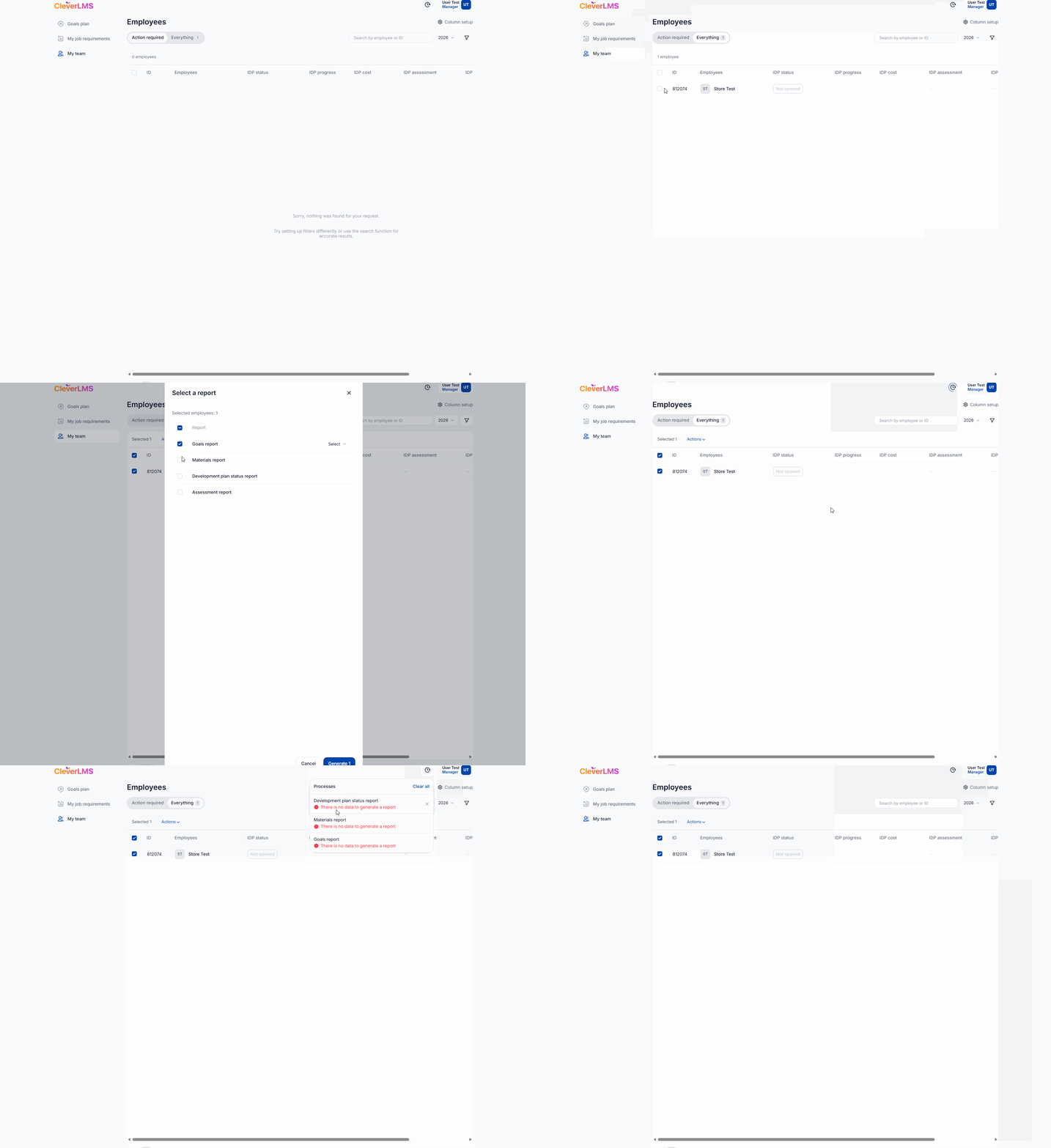
In this case there is nothing to report but in general a file will be created and can be downloaded and viewed.
Each of the selected reports will be generated in a separate file. Similar to uploading reports individually, they can be downloaded from the processes window after generation.